Zum Inhalt

Instructions: Email history as a single PDF
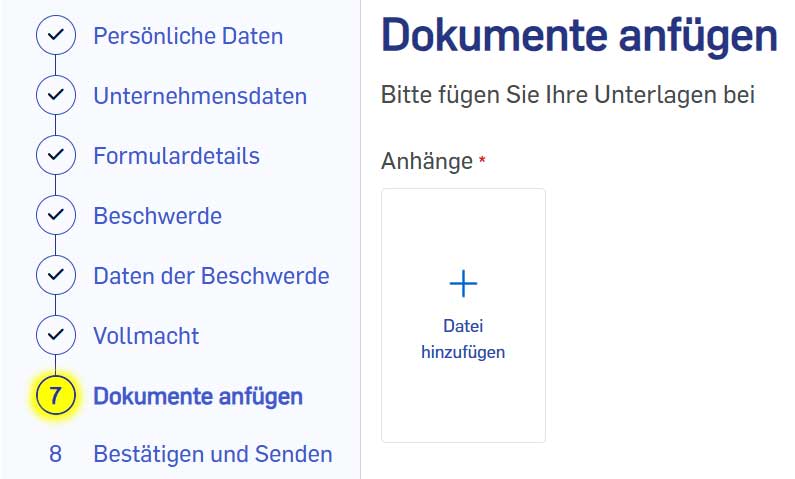
Photo of a section of the input form for complaints shows the menu structure
In step 7, the online form requires email correspondence with the company. Image: ECC Austria

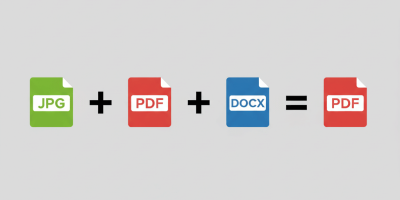
For your complaint, we require the correspondence you have had with the company. As we receive a large number of complaints every day, we ask you to save this correspondence in chronological order in a single PDF file. We will process your case more quickly if it has been clearly prepared by you and does not require any further enquiries.

The easiest way is to save all your correspondence with the problematic company in your email programme directly into a single PDF file. This can be done in a very similar way in all email programmes (Outlook, Gmail, GMX, etc.):

🛑Incorrect: Save email directly

Please note: In your email programme, do NOT select the option "Save email" or "Save as". This would save your message in pure email format (.msg or .eml). These formats cannot be used for uploading to our online form.

✅Correct: Select PDF in the print menu

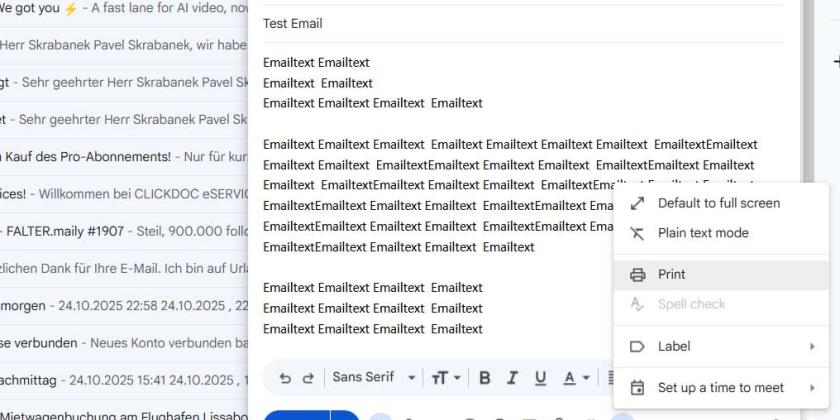
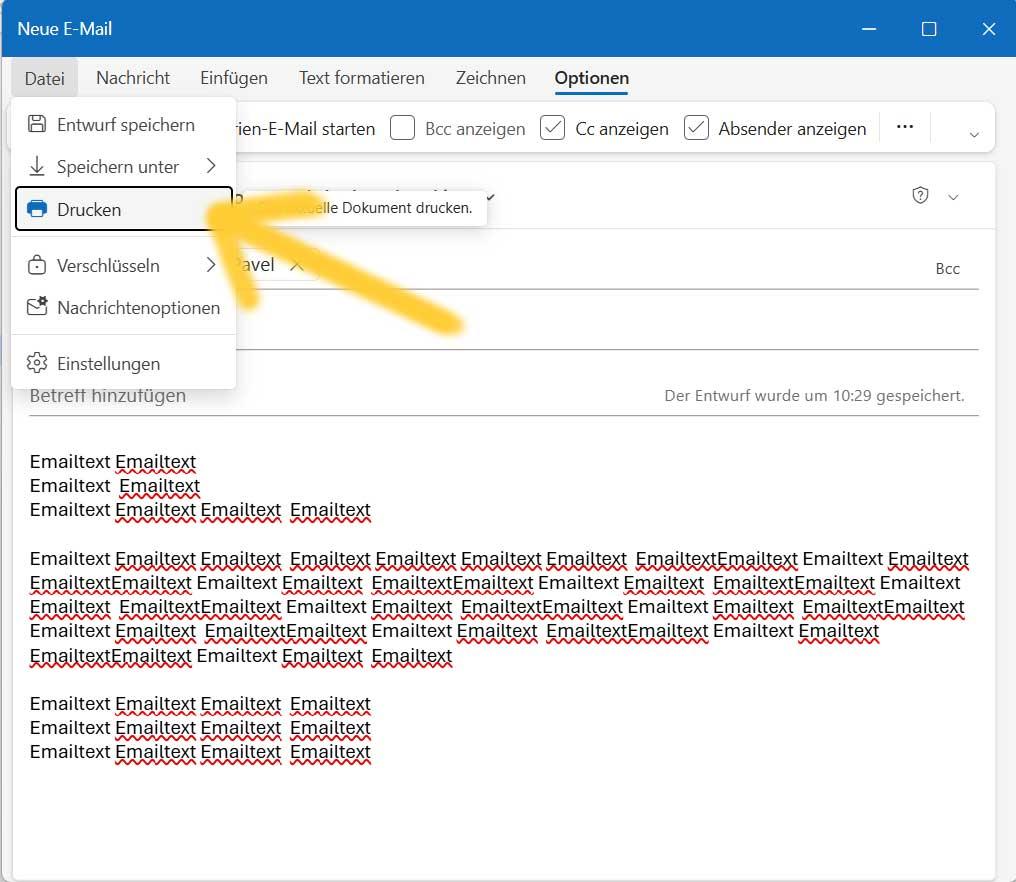
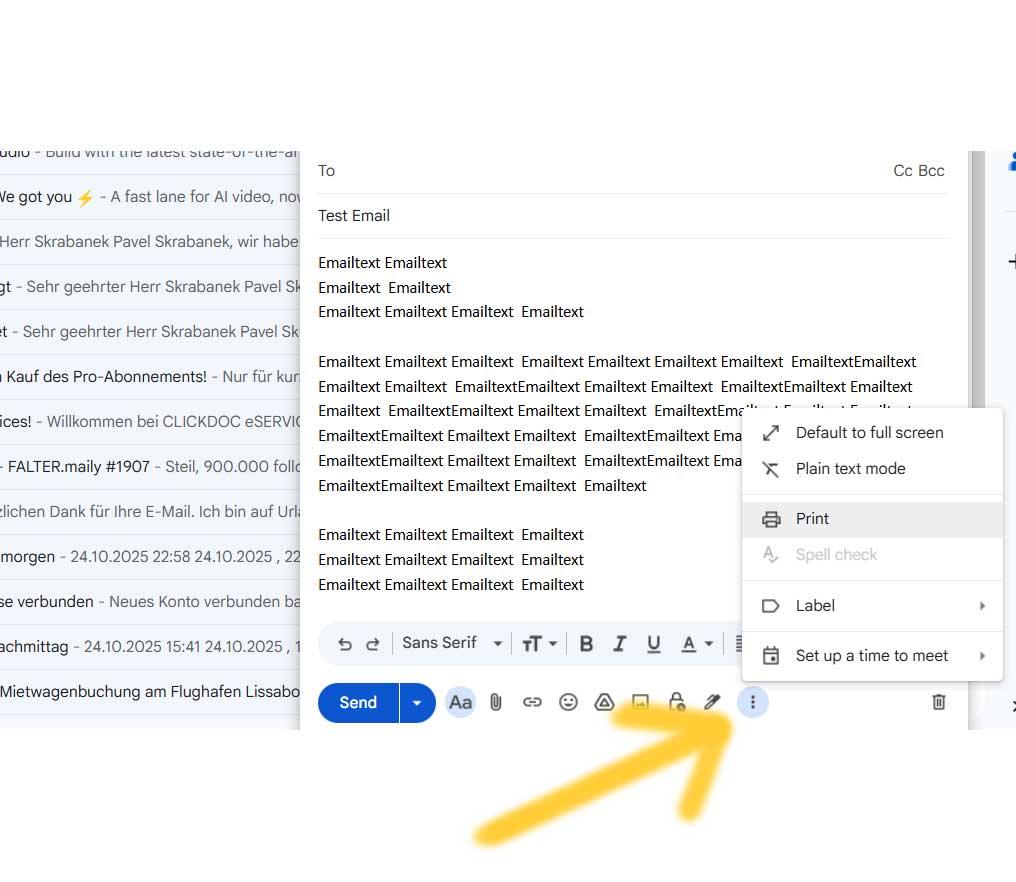
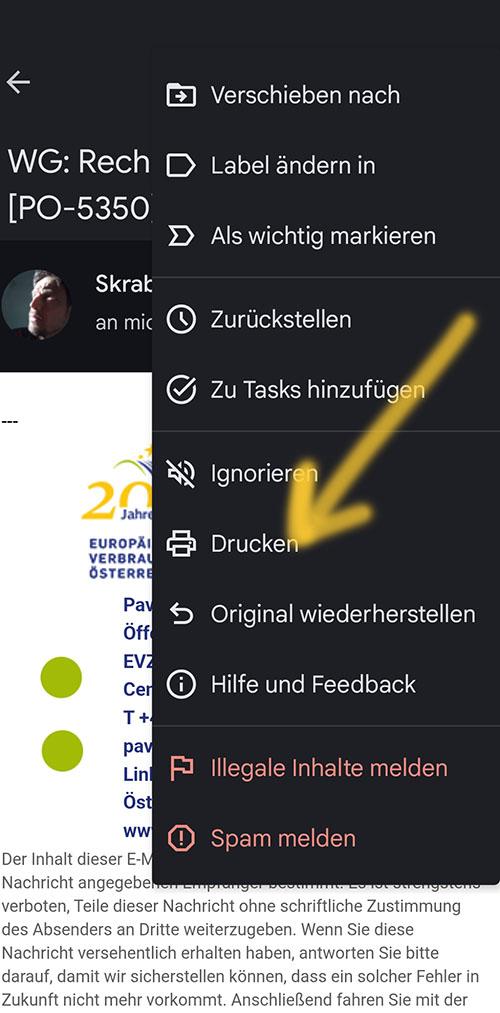
  1. Instead, go to the option "Print email" in your email programme. This option is often somewhat hidden. Depending on the programme, it can be found, for example, via the three dots ▪️▪️▪️ for further menu options or in the printer preview.
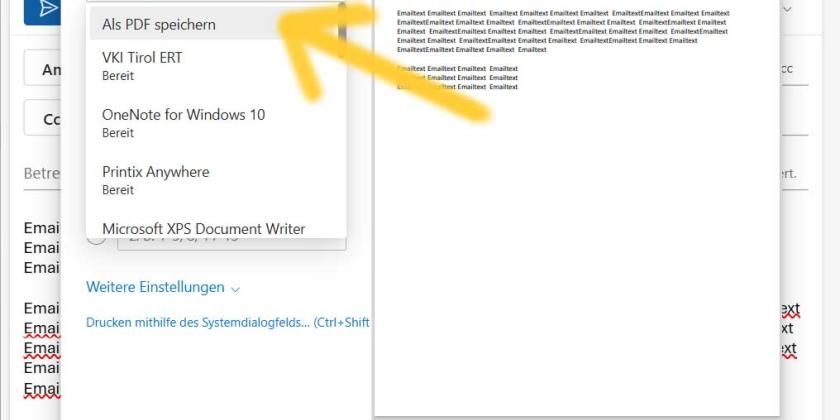
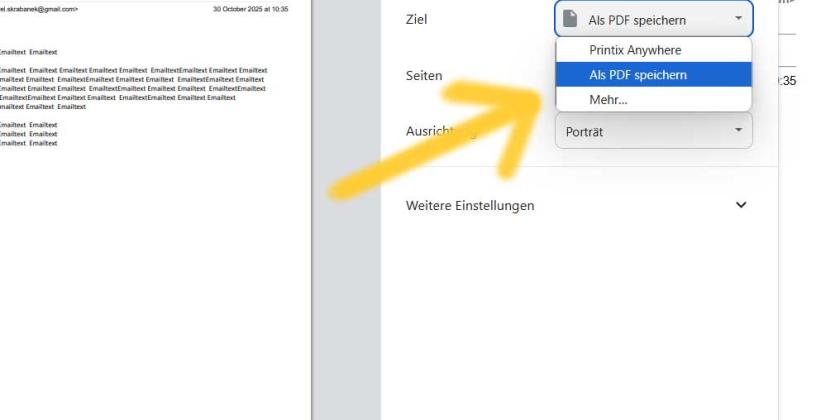
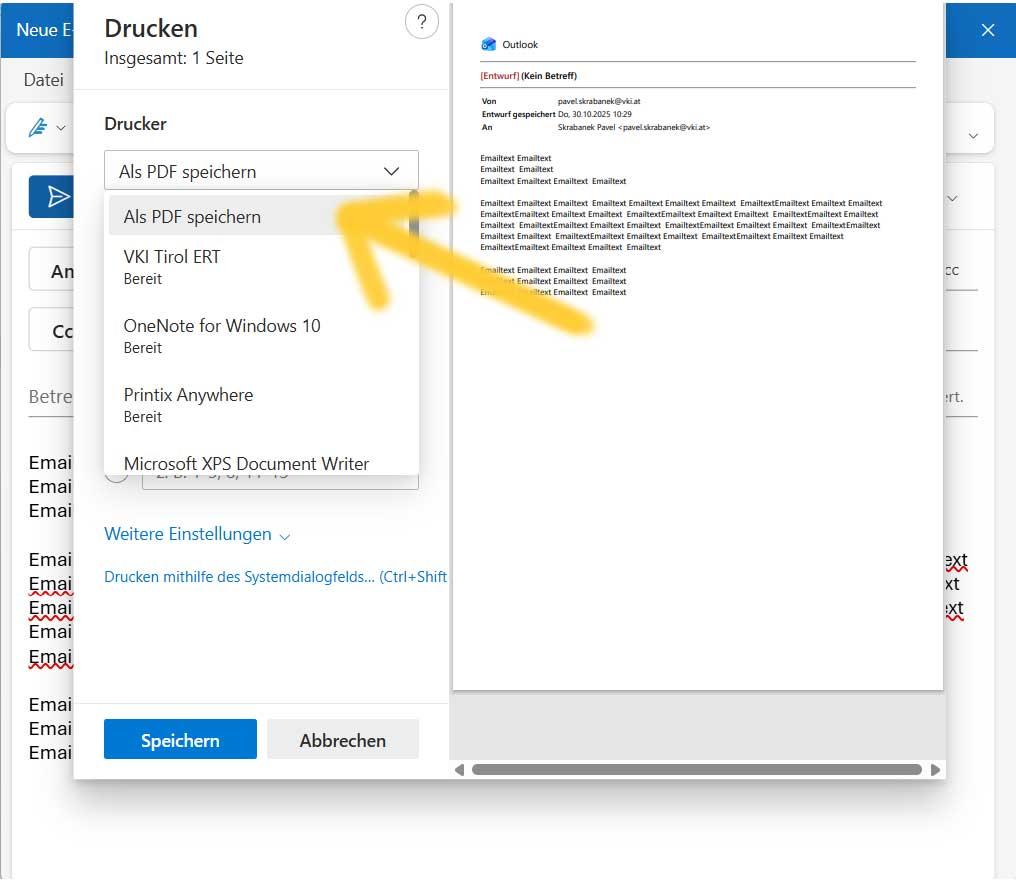
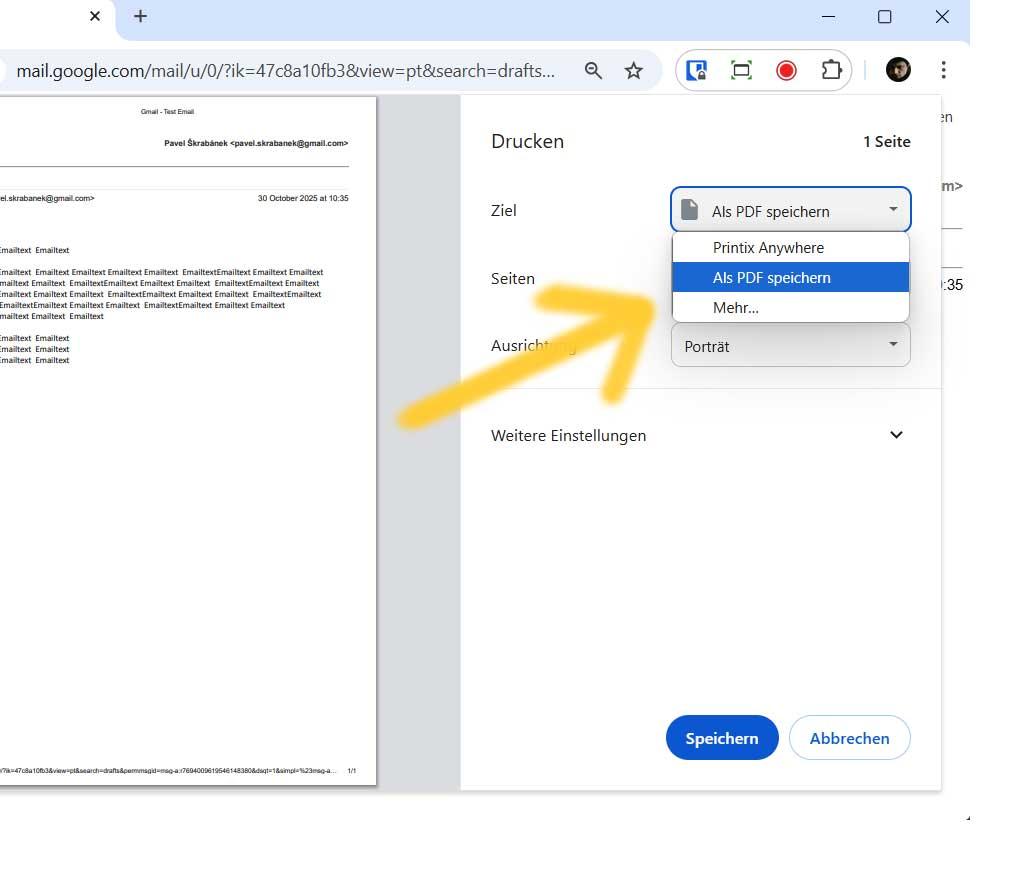
  2. In the menu selection there, do not select a printer, but rather the option "Save as PDF". This will save your entire conversation with the company completely and automatically in chronological order in a PDF file.
  3. Rename the file to "Email correspondence" or something similar.
  4. Finally, upload the PDF to our online form in step 7.

Here are some screenshots with examples to look through. (Can be opened in full screen mode):
×
Screenshot from Outlook shows menu item where you can save emails as PDF files
In Outlook, this can be found under File / Print. | Image: ECC Austria
Screenshot from Outlook shows menu item where you can save emails as PDF files
Then select ‘Save as PDF’ in the print menu. | Image: ECC
Screenshot from Gmail shows menu item where you can save emails as PDF files
In Gmail, the menu is somewhat hidden under the three dots ... | Image: ECC Austria
Screenshot from Gmail shows menu item where you can save emails as PDF files
Gmail also opens a print preview, where you can select ‘Save as PDF’. | Image: ECC Austria
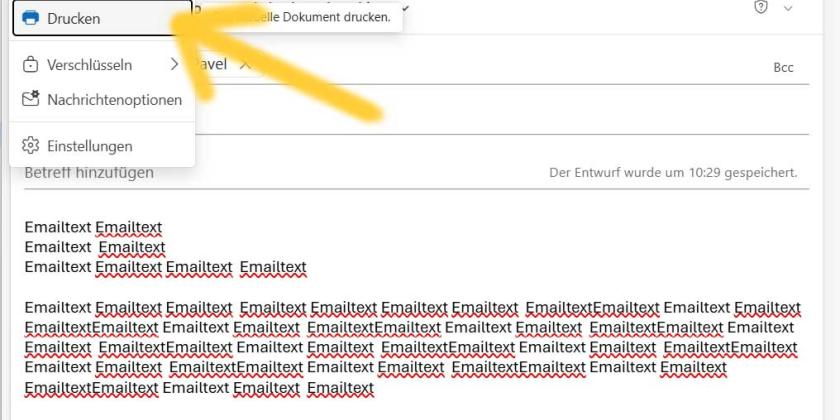
Screenshot of a smartphone showing various menu items in the email programme. The ‘Print’ option is marked with a yellow arrow.
In the email programme on your mobile phone (Android in this case), go to the advanced options and select ‘Print’ again... | Image: ECC Austria
Screenshot of a mobile phone screen showing the print menu in the email programme. The option ‘Save as PDF’ is marked with a hand-drawn arrow.
... then select ‘Save as PDF’ again in the print menu that opens. | Image: ECC Austria
Screenshot from Outlook shows menu item where you can save emails as PDF files
In Outlook, this can be found under File / Print. | Image: ECC Austria
Screenshot from Outlook shows menu item where you can save emails as PDF files
Then select ‘Save as PDF’ in the print menu. | Image: ECC
Screenshot from Gmail shows menu item where you can save emails as PDF files
In Gmail, the menu is somewhat hidden under the three dots ... | Image: ECC Austria
Screenshot from Gmail shows menu item where you can save emails as PDF files
Gmail also opens a print preview, where you can select ‘Save as PDF’. | Image: ECC Austria
Screenshot of a smartphone showing various menu items in the email programme. The ‘Print’ option is marked with a yellow arrow.
In the email programme on your mobile phone (Android in this case), go to the advanced options and select ‘Print’ again... | Image: ECC Austria
Screenshot of a mobile phone screen showing the print menu in the email programme. The option ‘Save as PDF’ is marked with a hand-drawn arrow.
... then select ‘Save as PDF’ again in the print menu that opens. | Image: ECC Austria

Share this post

Facebook Twitter Drucken E-Mail

This could also be of interest:

Who can the ECC support ?

Who can the ECC support ?

Before filling out our input form for questions and complaints, please take a moment to read through the requirements for our free support.

Powers of attorney

Powers of attorney

The signed power of attorney allows the EVZ to intervene on your behalf with the company. There are several powers of attorney, depending on the country of the company. Here are the explanations of which one is appropriate.

Sozialministerium
VKI
EU
ECC
Zum Seitenanfang